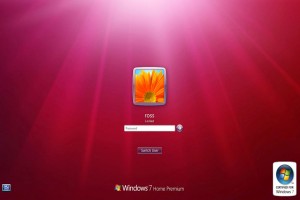
If your PC has multiple users or you have your PC on a public place, then you can now display legal notice to every user before they log in to your PC. This legal notice will be displayed on the Logon screen at every startup just before the Desktop is loaded.
Using this way, you can tell your friends or give a warning to the users about the DO’s and DON’ts in your computer when they use it in your absence. You can do this pretty easily just by using a small registry hack.
Steps to Display Legal Notice on Startup:
-
Go to Start -> Run, type regedit and hit ENTER.
-
Navigate to the following key in the registry:
-
On the right side pane look for “legalnoticecaption“, double click on it and enter the desired Legal Notice Caption.
Next below this look for “legalnoticetext” and enter the desired Legal Notice Text. The legal notice text can be up to a page in its size so that it can include a set of do’s and dont’s for your computer.
-
After you do this just restart your computer and upon the next startup you can see the legal notice information for your computer. This trick works on Windows XP, Vista and Windows 7 as well.
HKEY_LOCAL_MACHINE\SOFTWARE\Microsoft\Windows\CurrentVersion\policies\system
I hope you enjoy this post! Pass your comments.

 Windows TCP/IP Utilities
 Hack Software and Run the Trial Program Forever
 How to Retrieve Clipboard History in Windows
 How to Completely Erase a Hard Disk Drive
Karthik says
this is a good trick , good one i liked it very much
Janam says
Hey bro! this trick is really very cool. i first did it with my PC & its running smooth. Thanks for that. But if we want to disable this notice then what????
Azmat says
how to disable it ????
reversing the whole procedure???
@ Azmat
To disable this procedure all you have to do is just delete the text that you have typed in step 2 and 3.
rocky says
GOOD trick …….thankxxxxxxx
maming says
I am a new user, I dont know any code that list down. please help me to understand those code
Deeno20 says
Hi, i want to start hacking not cracking,but have no idea where to start from…can you guide me for this ..means step by step guide
Anvilhead says
thanks mate for all the wonderful stuff and e-knowledge that you shared with us. Keep up the good work as we can learn more from you and deliver some more..like creating virus stuff…in python ..if possible.
Deepak says
its working … i have one question that can we modify the text which we write over there , i mean to say that can we colourise the text or can we change the font something like that…..thank you sir
@ Deepak
No it’s not possible to modify the font/text.
Scott says
it might be possible to change font via modify the program that the dialog with resource hacker but being part of the logon process maybe not a good idea to tweak that 🙂
amit says
hi Sri,
u r osome hacker.please help me i don’t heck my friend gmail account………………………..please………………………………..sr……..
Rohan says
hhi bro
im a advance user and a Network Trainer…. so probs regardin spellin and other things…. but my PC is not able to open regedit
@ Rohan
Make sure that your have admin access. If you are still not able to open regedit then it means that your comp has some virus infection.
vijai says
REALLY SUPER TELL ME MORE INFORMATION……
Bun Leap says
It’s great.
Thanks!
But it’s a box. Can it be just a text?
For example, Kaspersky Internet Security 7.0!
krunal says
Thanxxx my BROther……….
U R cooooooooooooooooooooool>>>>>>>>>>>>>.
YO!!!!!!!!!!!!!!
evilparada says
tq for this trick..i like it.
BROTHER says
HKEY_LOCAL_MACHINESOFTWAREMicrosoftWindowsCurrentVersion
policiessystem
i can’t find policies…
TR says
Didn’t work on Windows Pro 7 either 32 or 64 bit. It does work from editing the local policy on the machine. When I edit the policy the legal notice appears as soon as I log off. No need to reboot. It would be nice if the registry hack worked becaue it is easier to script registry changes than policy changes.
Pragyan says
thanks for the wonderful stuff.I reversed the process and disabled it, but next time i went to redo it, I did not find the “legalnoticetext” option. Please help.
@ Pragyan
Just re-create the “legalnoticetext” key. Thats it.
Atul Upadhyay says
Acchha hai bahut Acchha hai , thanks
CP says
this is good trick…
Pragyan says
is it a key or a string value???
Thileep says
Thank you. Srikanth
columbs says
thank you very much cool trick amazement thanks for this but is there any way that we can change font
Sumit says
Hey B.
I LYK UR SITE VRY MUCH.
I M STUDNT OF COMP. ENGG.
WUD U PLZ TLL ME hw can create a OPERATING SYSTEM.
PLZ MAIL ME.I NEED UR HLP
thoma says
Super trick………!
Evan ( rupam ) says
Nice trick bro!! i’ll use this in cafe!! its good to be bad!!
dupson says
wow!!! this is good trick for nuisance! i wish to knw more about all this trick and also i want to knw how to create operating system plz if you knw how? just mail me regards
SOUM says
ITS REALLY WORKING
voltage35 says
I ahv a trick by which you can increase the font size of your legal notice, It actually magnifies the whole screen, but helps u…
1.Click the “Start” button, type “regedit” (without quotation marks) in the “Search” bar, right click on the “regedit.exe” found in the list and then click “Run as administrator”.
2.Navigate to the following key:
HKEY_CURRENT_CONFIG\Software\Fonts
3.Right click the Fonts entry on the left pane, choose “Export”, select “Desktop” in the “Save in” box and type “backup” (without quotation marks) in “File Name”. Click “Save”.
Please Note: The backup file is on the Desktop and named “backup.reg”. We can simply restore the registry by double-clicking the “backup.reg” file.
4.Double click LogPixels entry on the right pane, change the value to 60. (100%)
Also, you can change it to the following values:
78 (125%)
90 (150%)
5.Exit the registry key editor and then log off the user… Thats it 🙂
Rohan says
Hey there i want to bypass windows Logon Screen with my exe ……!!!!!!!!!
Any help?????????